How to Clean Up Space on Your Windows PC
Managing storage on your PC can feel overwhelming due to all the applications, files, and system data taking up space. This guide provides a systematic approach to identify what’s using the most storage and how to effectively clean it up.
Step 1: Check Storage Settings
-
Open Storage Settings
- Press Win + I to open the Settings panel.
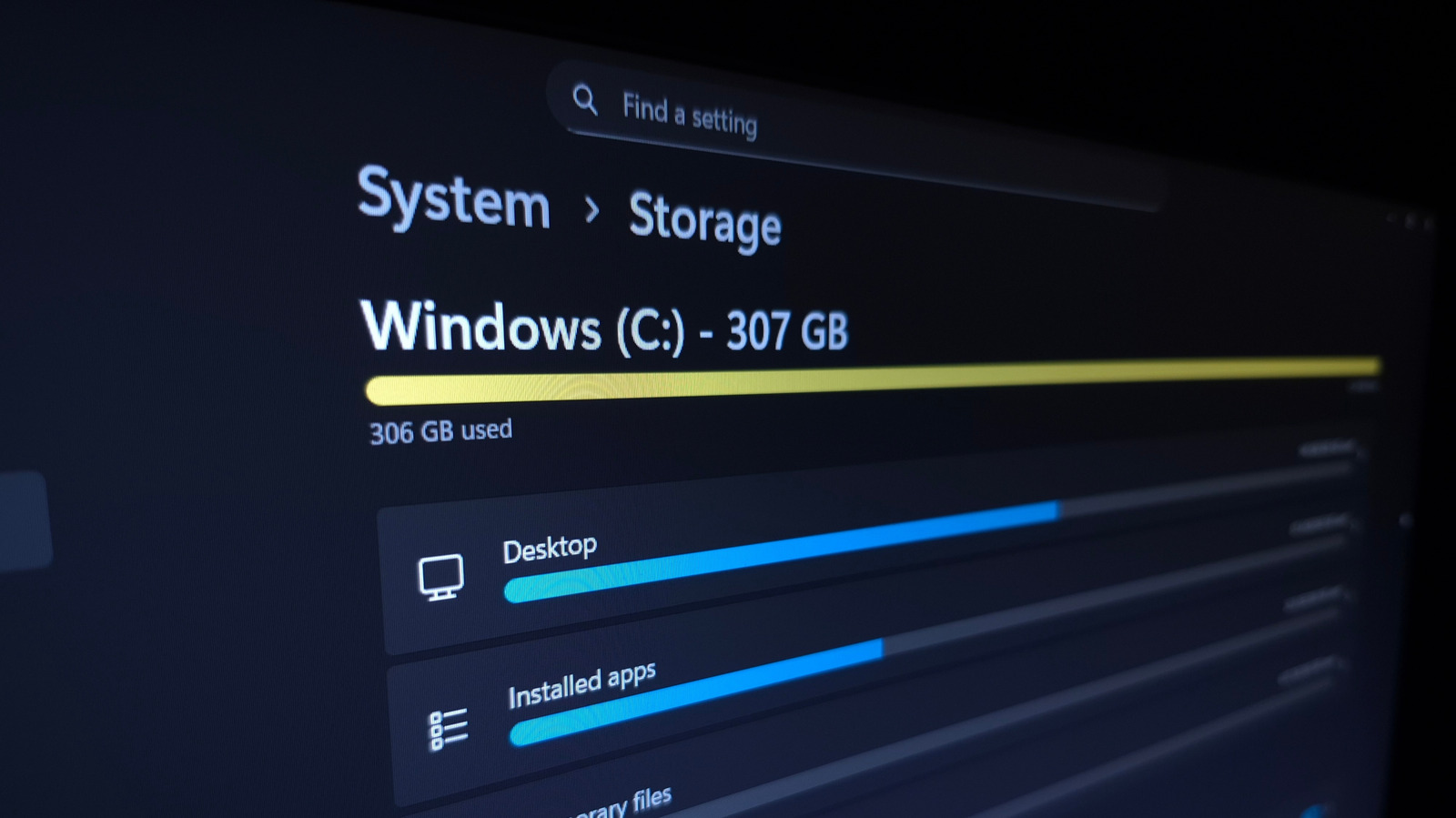
- Navigate to System > Storage. Here, you’ll find a breakdown of your storage usage.
-
Identify Large Applications
- Click on Installed apps to see what’s consuming space.
- Sort by Size (Large to Small) to prioritize what to remove.
- Use the three-dot menu to Uninstall any unnecessary apps.
-
Manage Temporary Files
- Explore the Temporary Files section. Check items such as Thumbnails that can be safely deleted.
- Click Cleanup System Files for more clutter-clearing options. Remember to check your Recycle Bin and Downloads before deleting.
-
Advanced Storage Settings
- If you have multiple drives, access the Advanced storage settings to see a complete usage breakdown.
Step 2: Reduce System Storage Use
- Analyze System Features
- Check the System & reserved section for space usage.
- Disable hibernation to remove the hiberfil.sys file:
- Open Command Prompt as an administrator and run
powercfg /hibernate off.
- Open Command Prompt as an administrator and run
- Manage System Restore options to reduce storage use:
- Click Manage system restore and adjust the Max Usage slider.
Step 3: Use TreeSize for Detailed Analysis
-
Download TreeSize Free
- This third-party tool provides a clear view of what’s taking up space.
- Run it as an admin and select your C: drive to scan.
- Review large folders and consider cleaning up categorized items like Program Files.
-
Identify Personal Files
- Check your Users folder for personal files that could be moved or deleted.
- Clear cache in folders like AppData to free up more space.
Step 4: Free Up Storage Easily
-
Uninstall Unused Programs
- Use clients like Steam to remove games you no longer play.
- Finalize deletions by clearing the Recycle Bin.
-
Offload Files to Cloud Storage
- Upload large files to services like YouTube or Google Photos and delete local copies to free up space.
- Consider using OneDrive for cloud copies of files you rarely access.
-
Invest in Additional Storage
- Evaluate the need for an external SSD or HDD for more space.
- Use flash drives for different types of files that don’t require immediate access.
-
Enable Storage Sense
- Go to Settings > System > Storage and enable Storage Sense.
- Set parameters for auto-cleanup, ensuring you don’t inadvertently delete important files.
Conclusion
Through structured steps, you can reclaim valuable space on your Windows PC. Regular maintenance, including employing tools like TreeSize and enabling Storage Sense, will help maintain storage efficiency for future use.