Unwanted distractions, such as photobombers, cluttered backgrounds, power lines, or outdated logos, can significantly diminish the quality of a well-crafted video. Not only do these elements detract from the artistic vision, but they also lower the overall visual appeal, particularly in social media, marketing, or storytelling contexts.
Fortunately, advanced AI-powered tools make it easier than ever to remove unwanted objects from videos, even for those without editing experience. In this article, we’ll explore how to effectively eliminate distracting elements from your videos using AI, providing a step-by-step guide along with the best tools and valuable tips for achieving polished and professional results.

Part 1: Filmora Walkthrough: Erase Anything in 3 Clicks
Wondershare Filmora is a user-friendly yet powerful video editing tool filled with advanced AI features. Among these is the AI Video Object Remover, which allows you to eliminate various objects, including people, text, logos, and moving elements, simply by marking them a few times with a brush.
Equipped with intelligent object recognition, selection modes, and automatic content filling, Filmora accurately removes unwanted items without sacrificing the video’s natural look or quality.
Step-by-Step Guide to Remove Objects from Video via Filmora
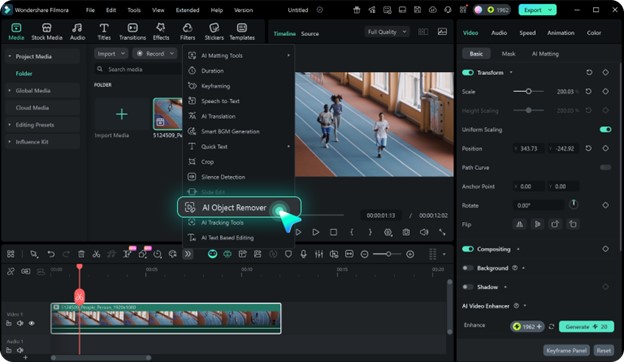
Step 1: Import Your Video/Photo and Choose the AI Object Remover
Begin by dragging your video or photo into Filmora and placing it onto the timeline. Select your clip, then choose the AI Object Remover from the toolbar.
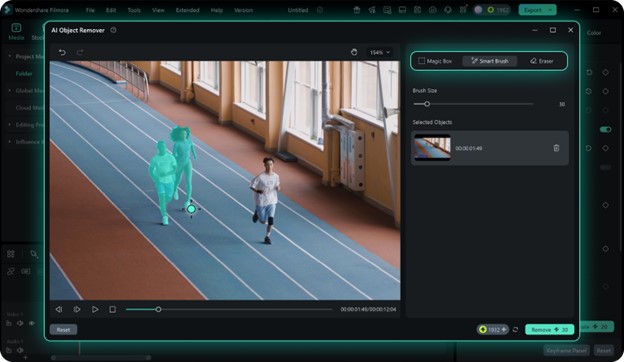
Step 2: Mark the Parts to be Removed
Use the Magic Box or Smart Brush to highlight the objects you wish to remove. You can alternate between the brush and eraser for precise selection, then click “Remove” to initiate the process.
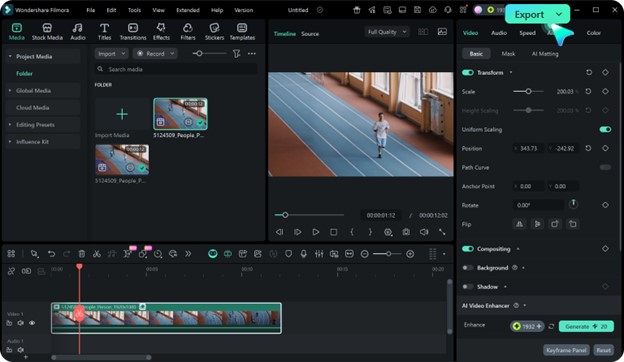
Step 3: Save the Video
Once the cleanup is finished, Filmora’s AI content-fill tool will seamlessly blend the background, ensuring a natural appearance. Save your creation by clicking “Export.”
Part 2: What AI Can Erase: From Photobombers to Logos
Modern AI tools like Wondershare Filmora allow you to remove not just simple objects but a range of other elements from your videos. The AI technology can identify and eliminate both static and moving objects while preserving the background, resulting in edits that appear natural and nearly imperceptible.
With this object remover, you can typically eliminate:
- People & photobombers: Unwanted subjects or bystanders in your frame
- Text & subtitles: Hardcoded captions, calls-to-action, or sensitive content
- Logos & branding: Company logos, overlays, or competitor branding
- Watermarks: Intrusive marks that detract from your visuals
- Background distractions: Power lines, litter, shadows, or random objects
- Moving objects: Cars, animals, or any dynamic elements tracked across frames
The principal advantage of AI is its ability to recognize objects across various video frames and fill in the spaces with surrounding pixels, yielding a clean, consistent, and professional appearance without visible gaps.
Part 3: 7 Reasons Filmora’s AI Video Object Remover Outperforms the Rest
Wondershare Filmora uniquely combines cutting-edge AI technology with a user-friendly interface aimed at creative individuals. It is ideally suited for producing clips for social media, marketing videos, and professional footage, delivering quick, precise, and natural-looking results without the complications of traditional editing software.
- Automatic content fill: It reconstructs the background content independently using nearby pixels, making removals look seamless.
- Dynamic object tracking: Frame-by-frame tracking enables removal of moving objects automatically, sparing you the tedious task of frame-by-frame editing.
- Intelligent recognition: Its AI detection system accurately identifies selected items while avoiding accidental deletions of overlapping or similar elements.
- No skills required: The design caters to both beginners and professionals, allowing users to brush over an object while the AI handles the rest.
- High-quality output: The integrity of your original video quality is preserved, including HD and 4K resolutions, ensuring a polished final product.
- Remove multiple objects at once: If you need to eliminate several unnecessary items simultaneously, Filmora makes it easy.
- Flexible selection tools: The Smart Brush is perfect for intricate areas, while box selection excels for fixed objects like logos, text, and watermarks.
Part 4: Filmora vs. Canva vs. Media.io: Which One Wins?
| Feature / Tool | Wondershare Filmora | Canva Magic Eraser | Media.io AI Video Object Remover |
| Platform | Desktop (Windows/Mac) | Online (Browser-based) | Online (Browser-based) |
| Supports video editing | Yes, tracks moving objects | No, photo only | Yes, supports moving objects |
| Object types removable | People, text, logos, watermarks, animals, trees, etc. | People, objects in photos | People, text, logos, watermarks, objects |
| Multi-object removal | Yes, multiple objects at once | No, single object per edit | Yes, with timeline adjustment |
| Tracking moving objects | Frame-by-frame AI tracking | Not applicable | AI tracks moving objects |
| Output quality | HD/4K preserved | High-quality image | Good resolution, depending on the upload |
| Processing speed | Fast (local processing) | Fast (small images) | Moderate (depends on upload/download speed) |
| Ease of use | Beginner-friendly, advanced control | Very simple, minimal options | Simple, moderate control |
| Best for | Professional video creators, vloggers, marketers | Quick photo edits, social media posts | Quick online video edits, short clips |
Part 5: Frequently Asked Questions (FAQs)
Q1: Can Filmora remove moving objects from a video without blurring the background?
Absolutely! Filmora features an AI Video Object Remover that works frame-by-frame to eliminate moving objects while preserving overlapping or occluded elements, resulting in a smooth and professional video.
Q2: Can you use Canva Magic Eraser for video editing?
No, Canva Magic Eraser is exclusively for photo editing. For video object removal, consider using a desktop AI solution like Filmora or an online tool like Media.io.
Conclusion
AI video object removal tools have revolutionized the editing process by simplifying the elimination of unwanted elements in videos. Whether addressing unexpected intrusions during a vlog or distracting logos in marketing content, these methods streamline the workflow, enhance the visual appeal, and lend a more polished, professional feel without the need for a complete reshoot.
Among these tools, Filmora’s AI Video Object Remover stands out for its advanced capabilities in understanding motion, accurately removing objects, and flawlessly filling in the background.