Recently, there has been a significant buzz surrounding Claude, and it’s easy to see why. Developed by the startup Anthropic, Claude has emerged as a leading AI platform amid the generative AI boom. While it has long been impressive, its capabilities have recently reached new heights.

In this article, we will explore the free version of Claude, offering insights for newcomers or those who have only experimented briefly without grasping its full potential. In upcoming posts, we will delve into some of its most intriguing tools, including Claude Code and Claude Co-Work. So, pour yourself a cup of coffee, take a deep breath, and get ready to discover.
One of Claude’s standout features is its capacity for managing ongoing projects. It allows users to maintain continuous context, meaning there’s no need to repeatedly introduce yourself and your requirements in every chat; you can set them up once, and Claude retains the information.
For instance, someone engaged in a writing task can initiate a new conversation and seamlessly continue from where they left off, eliminating the need to repeat background details. This feature is especially beneficial for ongoing projects rather than just one-off queries.
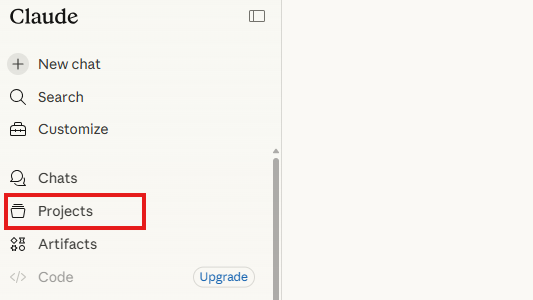
How it works: To get started, log in to Claude, click on ‘Projects’ on the left side, name your project, upload relevant documents, and provide custom instructions. This initial setup ensures that every conversation within that project incorporates the context you established. Without it, each discussion begins anew.
Despite its quirky name, one of Claude’s most powerful features is the generation of artifacts. These outputs are created by Claude and displayed in a separate panel, rather than within the chat interface itself.
Whether it’s a document, table, code snippet, or even a webpage, the results appear in an independent window where they can be viewed, modified, and downloaded. In essence, the chat serves as the dialogue, while the artifact represents the output.
How it works: During your interaction with Claude, simply request something like “Show me a comprehensive analysis with graphs of the Excel file I uploaded,” or “Create a computer game where a dinosaur escapes from aliens,” and observe the results.
Claude excels in interpreting images. Users can upload photos, screenshots, scanned documents, or graphs, and the system will provide analyses, transcriptions, and explanations.
Additionally, it can analyze screenshots of software applications or websites. For example, uploading a grocery receipt may yield a categorized summary of expenses— showcasing a surprisingly effective everyday application.
How it works: Simply click the paperclip icon in the chat, upload a picture or PDF file, and continue asking questions to Claude as usual. It’s that straightforward. For instance, I often upload my supermarket receipts and receive detailed graphical summaries of my purchases, categorized accordingly— an almost enlightening experience.
Claude improves over time, recalling users’ preferences and writing styles for future interactions.
In contrast to Projects— user-established contexts for distinct tasks— Memory is automatically developed from day-to-day interactions, such as remembering your name, occupation, or preferences, and is applied across conversations.
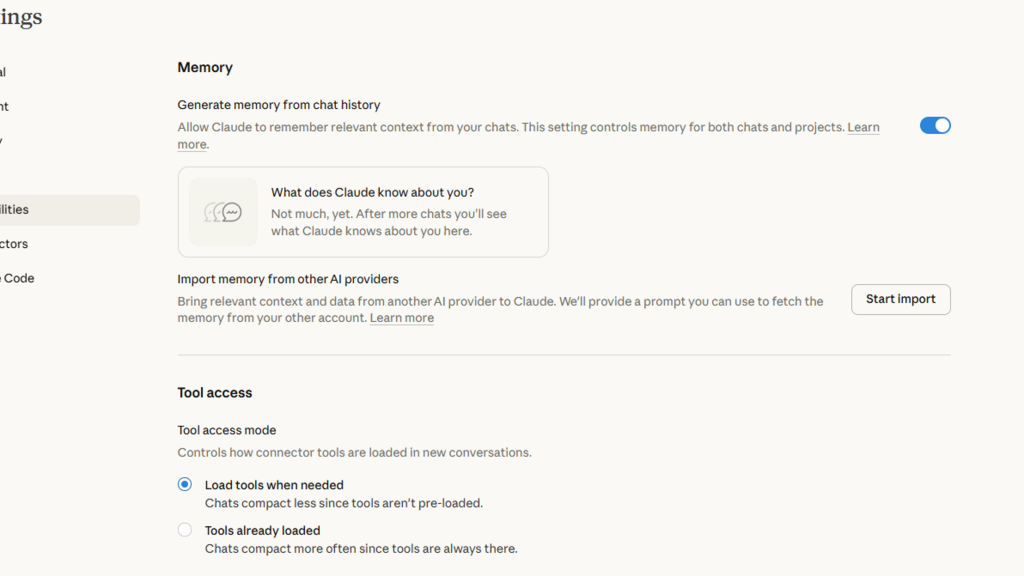
How it works: To access this feature, go to Settings and click on Capabilities. You’ll find the Memory option (ensure it’s activated). You can even prompt Claude, saying, “Remember that I began learning about you through the AI Academy on Ynet,” and he will remember. Additionally, you can instruct him to forget certain memories.
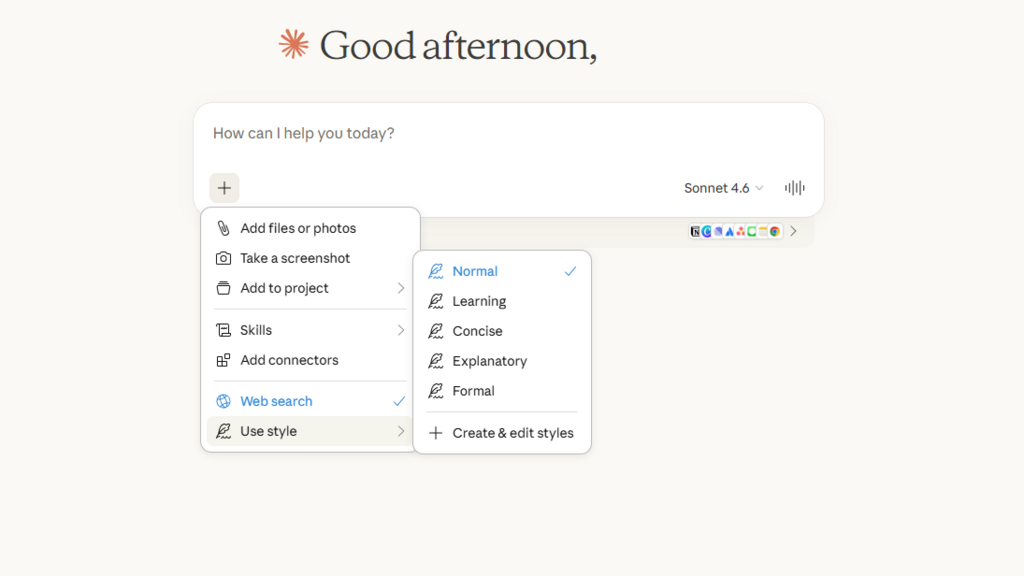
Much like other chatbots, Claude allows users to specify their desired writing style. For instance, you could direct it to “always write in concise, business-style English” or “adopt a formal tone with detailed examples.”
Once established, this style is applied automatically to all future responses.
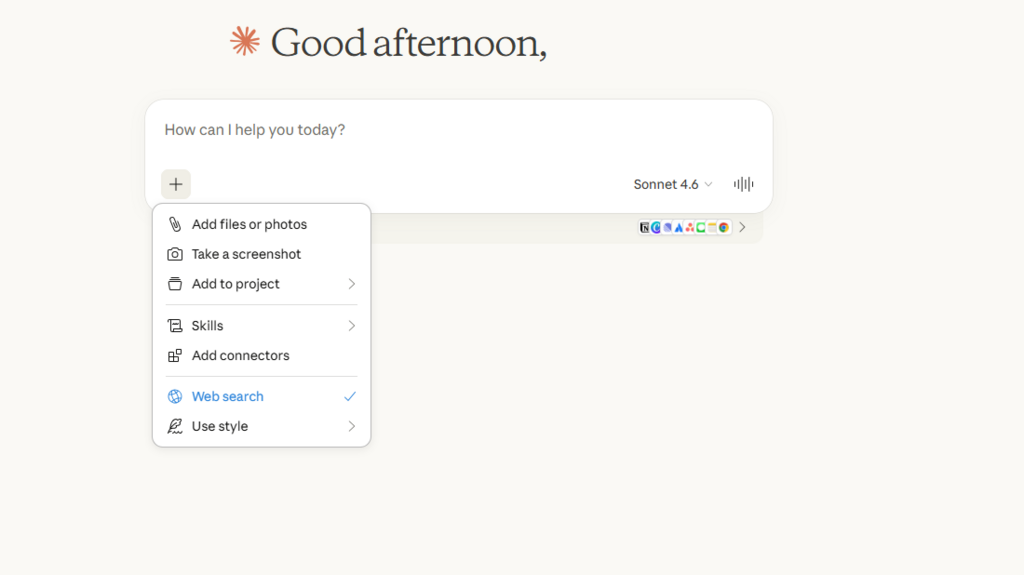
How it works: Within the conversation window, click the plus sign in the lower left corner, and choose the final option “Use Style.” You can select a pre-defined response style (Formal, Concise, Explanatory) or create your own. Set it once, and every conversation will automatically adhere to the chosen tone.
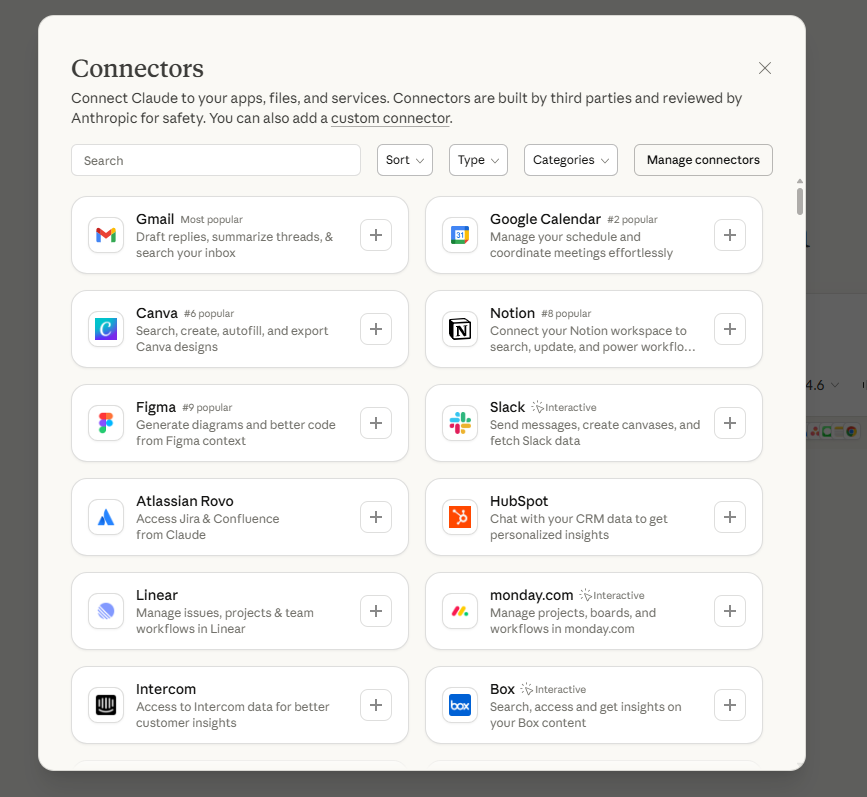
Claude can seamlessly connect to platforms like Google Drive and various applications. Instead of manually uploading files, users can instruct Claude to access documents directly.
Numerous integrations are available, including tools like Figma and various Google services, significantly enhancing workflow efficiency.
How it works: Beneath the conversation window, there’s a small panel where you can connect app integrations to Claude. Click on it and follow the prompts to connect the desired application. If the panel doesn’t show up automatically, click the plus sign in the lower left corner and choose Add Connector.
Claude enables real-time internet searches. Users can request the latest information and receive detailed answers with verifiable sources.
This capability is especially advantageous for tasks like finding flights or accessing current data, although some permissions may be necessary for full functionality.
How it works: Click the plus sign in the bottom left corner of the chat window and select Web Search. Note that you may need to grant Claude permission to access specific websites for the best results, such as if you’re looking for low-cost airline tickets. Otherwise, it will suggest reliable websites to buy from.
Combining Projects with Styles can turn Claude from a standard chatbot into a highly customized assistant.
Providing negative instructions—indicating what not to do—often enhances results.
Setting clear length restrictions, such as “three sentences” or “one paragraph,” ensures that responses stay focused.
These seven features transform Claude, even in its free version, from a basic chatbot into a robust and practical work tool. Users who limit their AI interaction to emails or occasional questions are missing out on much of its potential.