MSI Gaming Intelligence Software Overview
Introduction
Modern monitors come with myriad settings, making it challenging to adjust them on the fly. Especially when using the monitor for various activities, such as gaming or productivity, quick changes are essential. MSI’s Gaming Intelligence (G.I.) software is designed to streamline this process, enabling you to control nearly every aspect of your MSI monitor’s settings with ease.
We’ve utilized this software in previous monitor reviews and are diving deeper into its capabilities.
Supported Models
To use the Gaming Intelligence software, connect your MSI monitor to your PC via a USB connection, typically using a USB-B upstream port. Notably, the software is compatible with various MSI models, specifically the MEG and MPG series, but not the MAG series, which lacks the necessary USB upstream connection. Similarly, the G series monitors do not support this software.
Other MSI ranges like the PRO MAX and Modern series have a similar program named “Productivity Intelligence,” while the PRO series offers a more limited app called Display Kit.
Additional Features
Gaming Intelligence does more than just control OSD menu settings:
- AI Menu: Automatic loading of presets based on the current application or game.
- Keyboard Shortcuts: Quick access to essential settings.
- Firmware Updates: Easily perform firmware updates through the software.
- Integrated Windows Settings: Control various Windows functions including multi-tasking settings.
Exploring the Software
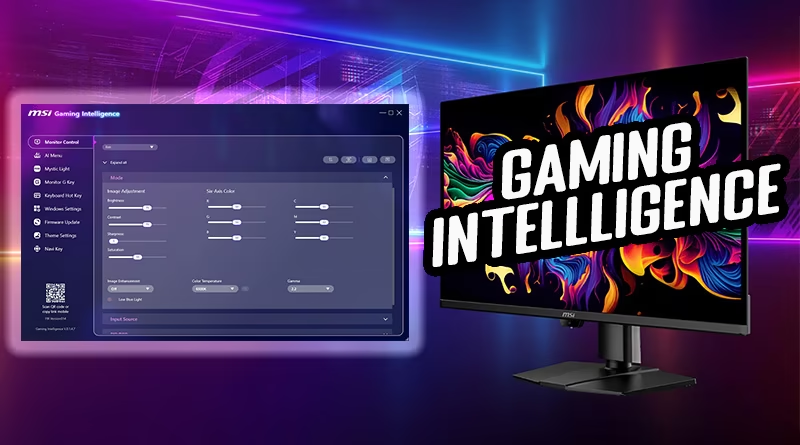
The G.I. app organizes settings into several sections. Most monitor settings are found in the ‘monitor control’ section, where you can manage brightness, color balance, and more. The software is user-friendly and responds quickly to changes made.
Main Monitor Settings Control
This section includes various gaming features, such as adaptive-sync and the MPRT blur reduction mode. You can also handle basic monitor settings like brightness and contrast here.
OLED Care
On OLED models, you’ll find tools for managing care settings to prolong the display’s life.
Input Source and PiP/PbP Control
You can easily manage the active input source and configure Picture-in-Picture (PiP) settings.
AI Features
The AI feature lets you link applications to specific configurations. For instance, opening Excel could automatically adjust the monitor to a low blue light mode to reduce eye strain.
Shortcut Buttons
Customize the monitor’s shortcut buttons for quicker access to your most used settings.
Keyboard Hotkeys
Keyboard shortcuts allow you to assign key combinations to frequently used settings, making adjustments incredibly swift.
Firmware Updates
Firmware updates can be easily performed through the G.I. software, although you still need to manually download the latest firmware from MSI’s support page.
Windows Settings Integration
You can modify several Windows settings, including mouse and power configurations, directly through the software.
Conclusion
MSI’s Gaming Intelligence software provides robust control over monitor functions and settings, enhancing your overall experience. It’s particularly useful for users who toggle between different applications and require quick adjustments without navigating through the OSD menu.
Stay Updated
For further insights and to keep up with the latest developments in monitor technology, subscribe to our YouTube channel, follow us on X, or support us on Patreon.