Streamline Your Presentation Creation with Adobe Acrobat
If you’ve ever found yourself struggling to distill key insights from a PDF into an engaging PowerPoint presentation, you’re not alone. Fortunately, Adobe Acrobat has introduced its new Generate Presentation tool, which acts as a valuable bridge from research to presentation. With the help of the AI Assistant, you can easily pull a coherent narrative from your documents, manage multiple files, and create a polished presentation using Adobe Express’ design capabilities. In this guide, we’ll explore a straightforward, desktop-oriented workflow that utilizes AI to make your data visually appealing and easy to understand.
Let’s dive into the process: gather your source documents, craft a concise slide outline, generate your presentation, and add a personal touch to make your slides engaging. Whenever you need to create a presentation based on PDFs or other files—whether for work or personal projects—Adobe Acrobat and its integrated AI Assistant are great tools to consider. Please note: information is accurate as of February 2026, and Adobe frequently updates its products, so some features may change over time.
What You Need
To begin, you’ll primarily utilize Acrobat on the desktop (with AI Assistant and PDF Spaces for multi-source projects) alongside the Generate Presentation feature. This functionality leverages Adobe Express tools to transform your prompts and documents into an editable presentation that you can refine and export as PPTX or PDF.
Gather Your Source Documents
Start by collecting one “core” PDF alongside several supporting files (like another PDF, a DOCX, an XLSX, or relevant links). If your project spans multiple sources, consolidate everything into a PDF Space, enabling you to summarize and query them as a single project.
Use AI Assistant to Extract the Story
Once your core PDF is open in Acrobat (with supporting files ideally organized in a PDF Space), it’s time to extract a clear narrative and supporting data. Acrobat’s AI Assistant is designed to answer questions based on your document’s content and can highlight the sections it references, ensuring you have accurate and reliable information at your fingertips.
Start with the Big Picture
Begin with a summary tailored for presentations—not a generic one. Aim for a concise list of key insights to serve as slide titles. For example, an Acrobat AI prompt could be: “Summarize this document in 6 bullets suitable for a presentation, keeping each bullet under 18 words and focusing on key changes and actions to take.”
Extract Evidence and Key Stats
Next, focus on gathering the most compelling statistics and insights. Use prompts like, “Pull out key stats I should feature on my slides, including a one-sentence takeaway and the relevant context.” If you’re employing a PDF Space, you can apply the same method across multiple files and links, which is beneficial when your overall story spans separate documents.
Create a Slide Outline
After you’ve pulled together essential insights, ask the AI Assistant to create a slide outline. This will save you significant time later, as you are guiding the AI on what a good presentation should look like before clicking “Generate Presentation.” Consider a prompt like, “Create a 10-slide outline for a 10-minute talk with a conclusion-style title, 2-3 bullet points, and one sentence of speaker notes for each slide.”
As you proceed, leverage the built-in highlighting and citation features as a quality filter. If you encounter surprising figures, revisit the original passages to verify their accuracy before building your slides around them.
Shape the Outline
Prior to generating slides, take a moment to consider the overarching story you wish to convey. While AI excels at producing copious amounts of content, the most effective presentations have a clear, simple structure to keep your audience engaged. If, for instance, you’re sharing findings from a report, distill your message into three to five key takeaways that the audience should remember, and then build your slide list around those points.
Craft Compelling Slide Titles
A helpful strategy is to ensure your slide titles do the heavy lifting. Instead of generic headings like “Churn” or “Customer Support,” craft titles that create immediate understanding, such as “Churn Increased, but Risk Concentrated in First 90 Days.” This approach enhances the scanning experience for the audience and prevents your slides from appearing generic.
If you’re having difficulty condensing these titles or other passages, consider using Acrobat’s AI writing tools for assistance. The summary generator and PDF editing tools can help you refine ideas and verify grammar and readability. Additionally, Adobe Acrobat for ChatGPT can extract information and brainstorm fresh ideas for your presentations.
Refine Your Outline
Once you have a draft outline, perform an “anti-bloat” check: aim for one idea per slide, ensure text is concise, and reserve detailed information for speaker notes.
Generate the Presentation
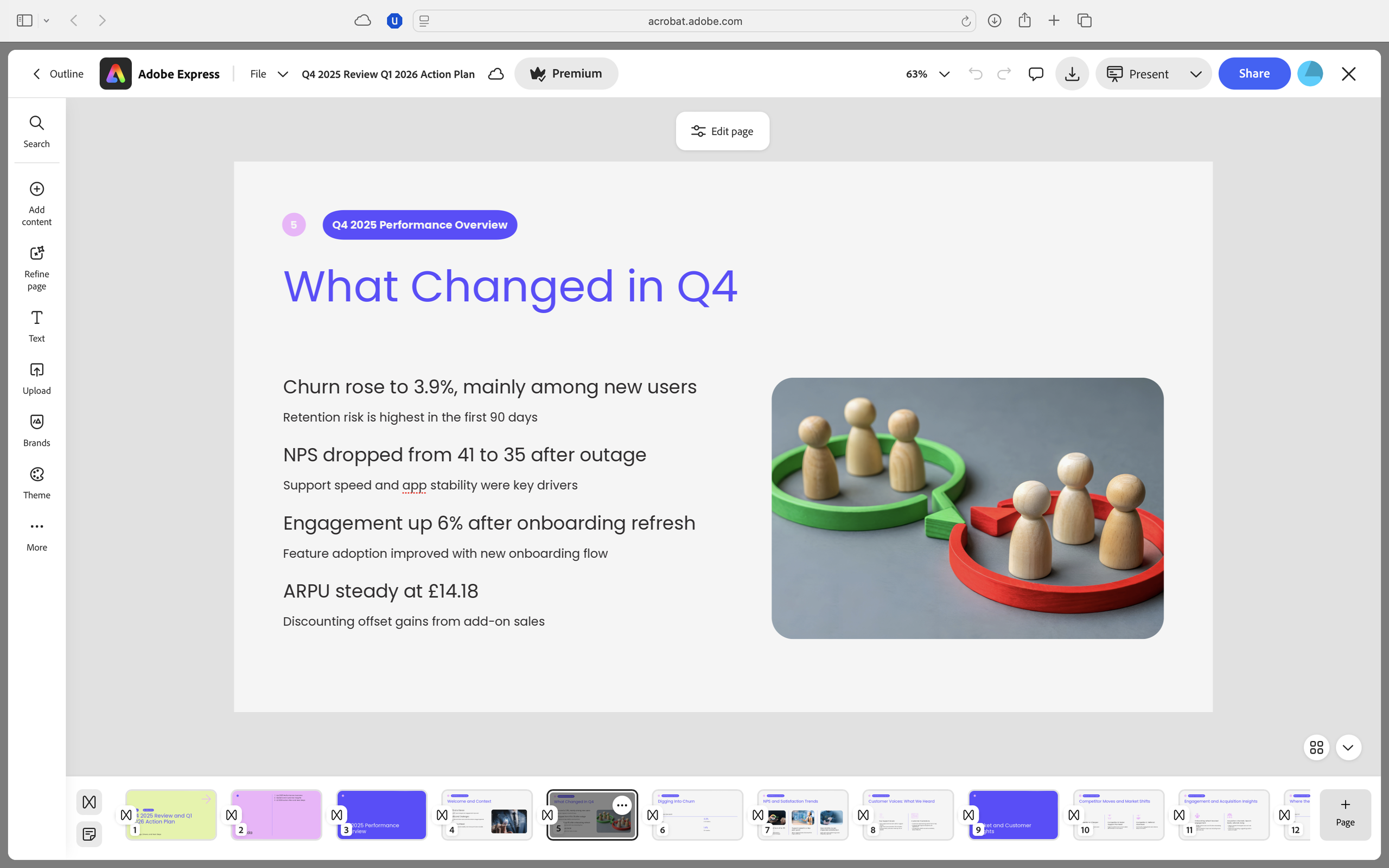
With your carefully crafted outline in place, it’s time to let Acrobat handle the heavy lifting. Open the Generate Presentation feature and decide whether to start with a simple text prompt, uploaded files, or content drawn from a PDF Space. Acrobat will first create an outline, allowing you to reorder slides, remove unnecessary elements, and add anything that’s missing before generating the complete deck.
Select a Template
After finalizing the outline, choose a template and generate your presentation. Adobe Express will now open an editor where you can refine layouts, typography, and media as you would with any design tool. To achieve the best results, be specific in your prompts regarding slide count, target audience, and desired tone, and make sure to upload only the sources you want the AI to reference.
Make the Deck Engaging
Treat the first generated version of your deck as a draft to refine. The quickest way to enhance its engagement factor is by revising the slide titles to be easily digestible at a glance. Once your titles convey a strong message, condense the body text to succinct bullet points that you can articulate during your presentation, reserving additional details for speaker notes.
Your AI writing tools and summary generator should come in handy at this stage, but remember to read everything aloud to ensure it aligns with your intended flow and presentation style. Also, assess the pacing; AI-generated slides can come out looking similar, so incorporate deliberate variety. If a slide seems structurally off, consider using the editor’s regenerate or recreate features instead of adjusting it line by line.
Ensure Credibility
Finally, perform a credibility check. If your presentation includes figures from PDFs, ensure that all numbers match their respective sources and that your claims are substantiated by the source material. The AI Assistant can help you navigate back to the relevant passages for verification, making it worthwhile to invest time in this step to avoid misleading mistakes.
Export and Share
When your deck meets your standards, export it in a format that aligns with your workflow. A PDF is ideal for consistent formatting during presentations or when sharing final versions, while PPTX is preferable for collaborating with others who may want to make edits.
Common Mistakes and Quick Fixes
AI-generated presentations often falter due to vague prompts, excessive slide counts, or unchecked claims. To avoid these pitfalls, tighten the audience and outcome in your prompts, maintain a reasonable number of slides, and leverage Acrobat’s AI Assistant to verify any critical information included in your headlines.
FAQs
- Can Acrobat’s AI create a presentation from multiple documents at once? Yes, you can generate presentations from multiple uploaded files.
- How long can my prompt be when generating a presentation? Prompts can be up to around 1,000 words long, according to Adobe’s FAQ.
- Does Acrobat AI cite sources? The AI Assistant can show highlights and citations from the PDF passages utilized.
- Can the AI Assistant help me write a presentation? Yes, Acrobat’s AI writing tools can assist in creating new ideas and reviewing existing content for errors and readability.
- How does Acrobat’s summary generator work? The Summarizer tool produces a brief overview of all or part of your document for quick data processing.
- Can I edit the deck after it’s generated? Yes, you can make edits in an Adobe Express-style editor before exporting as PDF or PPTX.
- What languages are supported for AI presentation generation? According to Adobe’s Express documentation, English and French are currently supported.
In conclusion, Adobe Acrobat’s new features simplify the process of transforming raw data into compelling presentations. By leveraging its AI capabilities and structured workflow, you can easily create professional slides that captivate your audience. Embrace these tools to enhance your presentation-making experience, allowing you to focus more on the message and less on the mechanics.